
Free
Connect your TopSet logbook to your own AI assistant
TopSet does not bundle a built-in chatbot or sell token markups. Using our MCP (Model Context Protocol) connector, your own AI assistant (such as Claude) can read your completed sessions, working sets, RPE, and active programs to answer training questions, and can save plan drafts for you to review.
https://connect.topset.top/mcpVideo: Full workflow with TopSet and your AI
Your AI drafts a plan, and you save it in TopSet to log sets. Your AI then reviews your progress. 1 minute 35 seconds.
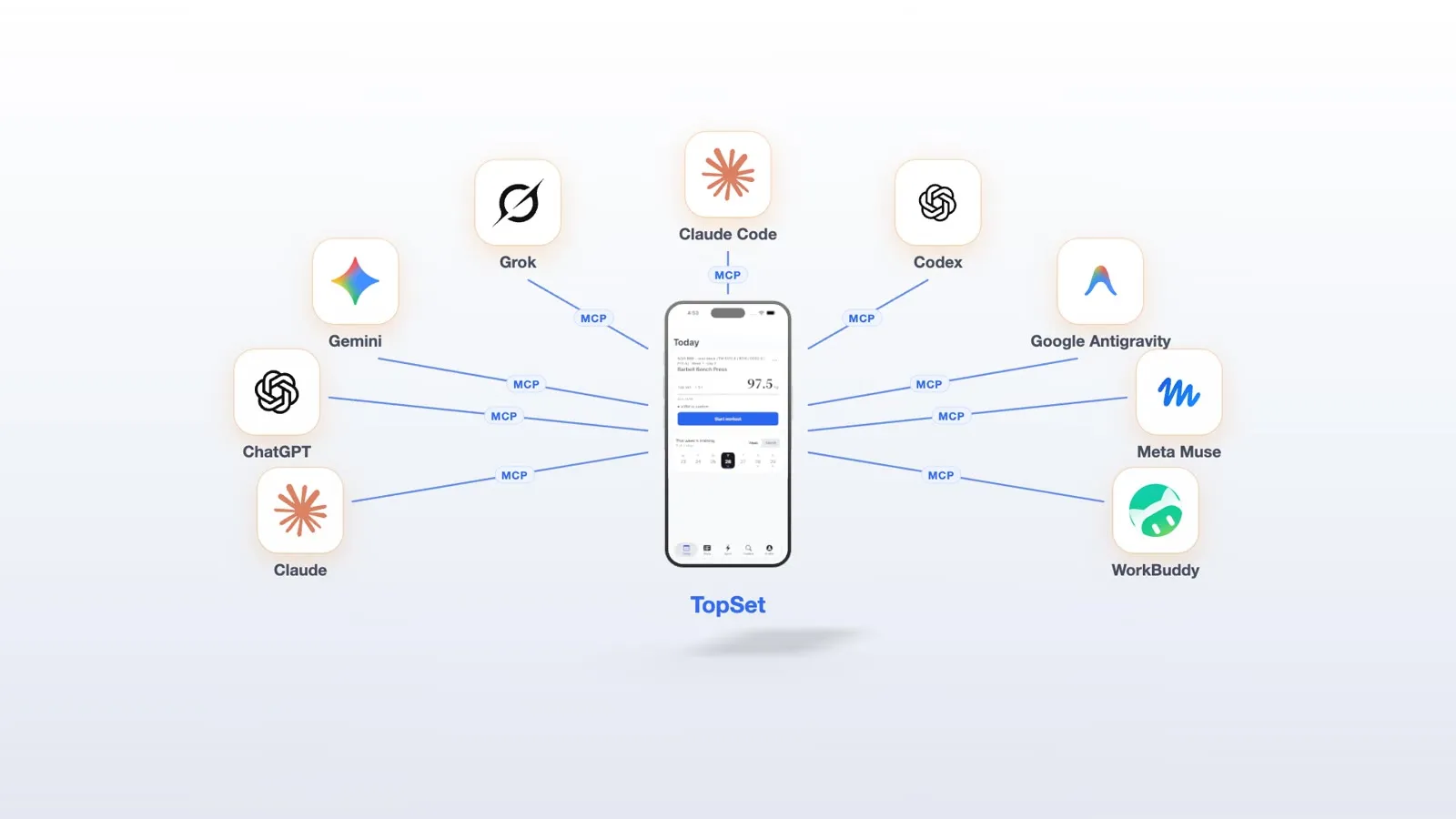
Choose your AI tool
Each tool adds connectors in a different place. Pick the one you use and follow its steps.
- ClaudeAnthropic · Web · Desktop · Mobile
- ChatGPTOpenAI · Web
- GeminiGoogle · Web · Mobile
- Claude CodeAnthropic · Command line
- CodexOpenAI · Command line · Editor · Desktop
- Google AntigravityGoogle · Desktop · Editor · Command line
- GrokxAI · Web · Mobile
- Meta MuseMeta · Web · Mobile
- WorkBuddyTencent · Desktop
At a glance
| What it is | TopSet Connect, an MCP connector that links your TopSet training log to your own AI assistant. TopSet has no built-in AI. |
|---|---|
| Works with | Claude, ChatGPT, Gemini, Claude Code, Codex, Google Antigravity, Grok, Meta Muse and WorkBuddy, each with setup steps |
| What it can do | Reads your finished workouts (weight, reps, RPE and notes for each set), your estimated 1RM trend and your active programs; saves plan drafts that take effect only after you approve them in the app |
| What it can’t do | Can’t log or edit workouts or change saved programs; can’t see your email, body weight or height |
| How to get it | No invite needed: add the connector in your assistant, then approve it in TopSet on iPhone |
| Price | Free; TopSet adds no AI charges |
| What you need | TopSet on iPhone (iOS 18.0 or later) to approve the connection |
| Connector URL | https://connect.topset.top/mcp |
How do other workout log apps compare? See which ones connect to Claude or ChatGPT.
What TopSet Connect does
Instead of taking screenshots of your logbook and pasting them piecemeal into chat, TopSet Connect gives the assistant you already use direct read access to your finished workouts, per-set weights, reps, RPE, set notes, tracked estimated 1RM progression, and active program schedule. All numbers are returned in kg with your preferred display unit attached, and it cannot edit or delete your logged workouts or saved programs.
Connect in 3 steps
Add our custom MCP connector in your assistant, approve it in TopSet on iPhone, then enter the 6-digit code the app shows. Where you add it differs by tool; each one has its own steps under Choose your AI tool above:
Add the custom connector URL
In an assistant that supports custom MCP connectors (for example Claude: Customize › Connectors › Add custom connector), enter https://connect.topset.top/mcp.
Approve in TopSet, then enter the 6-digit code
Scan the QR code on the connection page with your iPhone camera, review the permissions in TopSet (read your training, draft plans) and tap Allow. The app then shows a 6-digit code: type it into the connection page on your computer to finish. Only enter it on a page you opened yourself.
Ask for training reviews or disconnect anytime
You can start analyzing recent blocks right away. To stop sharing anytime, go to Profile › AI assistants › Disconnect in TopSet to revoke that client token immediately.
Permissions & privacy boundaries
Every athlete connection is granted two permissions: reading your training (training:read) and creating plan drafts (plans:draft). A draft is saved as pending in TopSet, expires if left unreviewed, and becomes a program only after you open it in the app and approve it. Your assistant can never alter or delete existing saved plans or logged workouts.
What it can read
- Your display name, preferred weight unit (kg or lb), and time zone
- Tracked lifts and their estimated 1RM (e1RM) trend history
- Completed workouts and working sets (weights, reps, RPE, and set notes up to 500 chars; skips warm-ups; capped at 92 days per query)
- Your active training programs and single-day exercise prescriptions
What it cannot see or change
- Cannot see your email address, password, body weight, height, gender, or profile photo
- Cannot log sets, edit completed workouts, delete sessions, or alter your logbook history
- Cannot modify, overwrite, or delete saved training programs, tracked lifts, or app settings (a draft stays unapplied until you approve it inside TopSet)
- Removing a connector inside a third-party client does not always notify TopSet; disconnect inside the TopSet app to revoke tokens immediately
Tested analysis prompts you can copy today
Every prompt below only reads and analyses your logbook, and stays within what the connector allows. Copy one and paste it straight into your connected chat.
Last 2–4 weeks volume & recovery review
Best at the end of a training week or microcycle to summarize frequency, top sets, and fatigue notes.
Read my completed TopSet sessions from the last 28 days (excluding warm-ups) and give me an objective training review: 1) actual sessions per week and total hard working sets; 2) top working weights and RPE trends across squat, bench, deadlift, and overhead press; 3) any recovery or fatigue signals visible in my set notes or RPE swings.
Main lift e1RM trajectory & plateau check
Helps separate real top-end progress from simply grinding higher RPE at the same bar weight.
Check my TopSet lift history and estimated 1RM trends over the past 8 weeks for squat, bench press, and deadlift. Distinguish between weights moving with lower RPE versus heavier e1RM numbers driven by maximal RPE, and tell me which lift looks closest to a plateau.
Spot stall signs & RPE drift across sets
Use when weights start feeling heavier than expected and you want evidence across exact dates.
Inspect my completed TopSet workouts and set notes over the last 6 weeks for two signals: 1) repeated weights where RPE drifted upward or target reps were missed; 2) recurring notes about poor sleep, grip fatigue, or joint irritation. List the exact dates and lifts without drafting a new program.
30-day push / pull / lower balance check
Useful for checking whether upper-back pulling or posterior-chain volume is lagging behind pressing.
Summarize all completed working sets from my last 30 days in TopSet grouped by horizontal push, vertical push, horizontal pull, vertical pull, quad-dominant lower, and hinge/posterior chain. Highlight the lowest-volume pattern and where recovery demand is highest.
Today’s scheduled day in context of this week
Quick 30-second check before walking into the gym so pacing matches recent fatigue.
Look up the next scheduled workout day in my active program on TopSet alongside my completed workouts and RPE notes from the last 7 days. Summarize what weights and RPE targets are scheduled today and note anything worth pacing conservatively.
Disclaimers & operational limits
- Insights generated by an external AI assistant are for organizing your personal training logs only. They are not medical advice, injury diagnosis, or coaching guarantees.
- Connector endpoints enforce rate limiting (1,000 requests/day), and a 92-day query window per session lookup. This public documentation page remains accessible without signing in.
- Stop any movement that causes sharp or unusual pain and consult a qualified clinician. Need help connecting or want to report a bug? Reach us at andyrenrj@taigang.club.
FAQ
Do I have to pay extra for TopSet Connect?
No. TopSet Connect is free and open to every athlete. You use your own AI assistant account that supports custom MCP connectors, and TopSet adds no token markup.
What happens if my assistant mixes up kg and lb?
The MCP server always passes stored weights in kg alongside your chosen display unit preference (kg or lb). Simply tell your assistant which unit you prefer in your prompt if you want every number formatted consistently.
How do I know only my approved assistant can read my workouts?
Every connection has to be approved in TopSet on your iPhone, and the app then shows a 6-digit code that must be typed into the connection page you opened on your computer. You can review active connections or tap Disconnect inside Profile › AI assistants at any time to revoke tokens immediately.
Can my AI assistant log workouts or change my saved programs?
No. Your assistant cannot log sets, alter completed workouts, or overwrite or delete your saved training programs. The connector can read your training and create plan drafts, but a draft stays pending until you review and approve it inside TopSet. The prompts on this page only read and analyse your logbook.