Features

Episode 00

TopSet in 2 minutes

Each tab has one job: today’s workout, your plans, training off-plan, finding a new program, and your stats and settings.
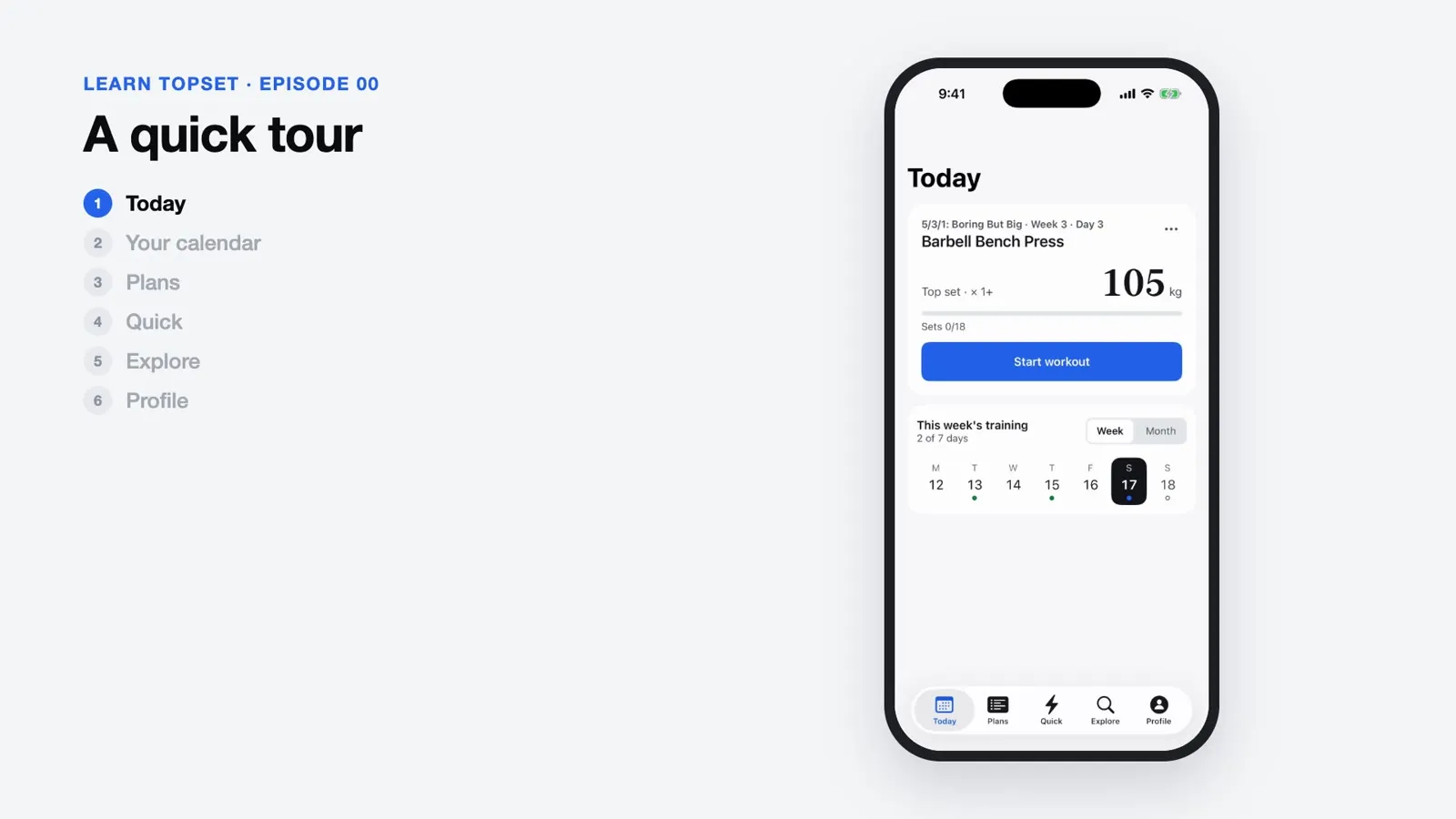
  • TodayThe plan card lists everything scheduled for the day and starts the workout. This tab also totals your sets and volume for the day.
  • PlansPrograms you copied and plans you built yourself, all in one place.
  • QuickTraining that isn’t in your plan starts from the Quick button in the middle of the tab bar.
  • ExploreThe program library and the exercise library. Browse them without an account.
  • ProfileYour e1RMs, DOTS tier, body weight, the calculators and every setting.
  • Offline loggingYour data is saved to your account in the cloud. You can keep logging offline, and your sets upload when you’re back online.
Episode 01

Set up

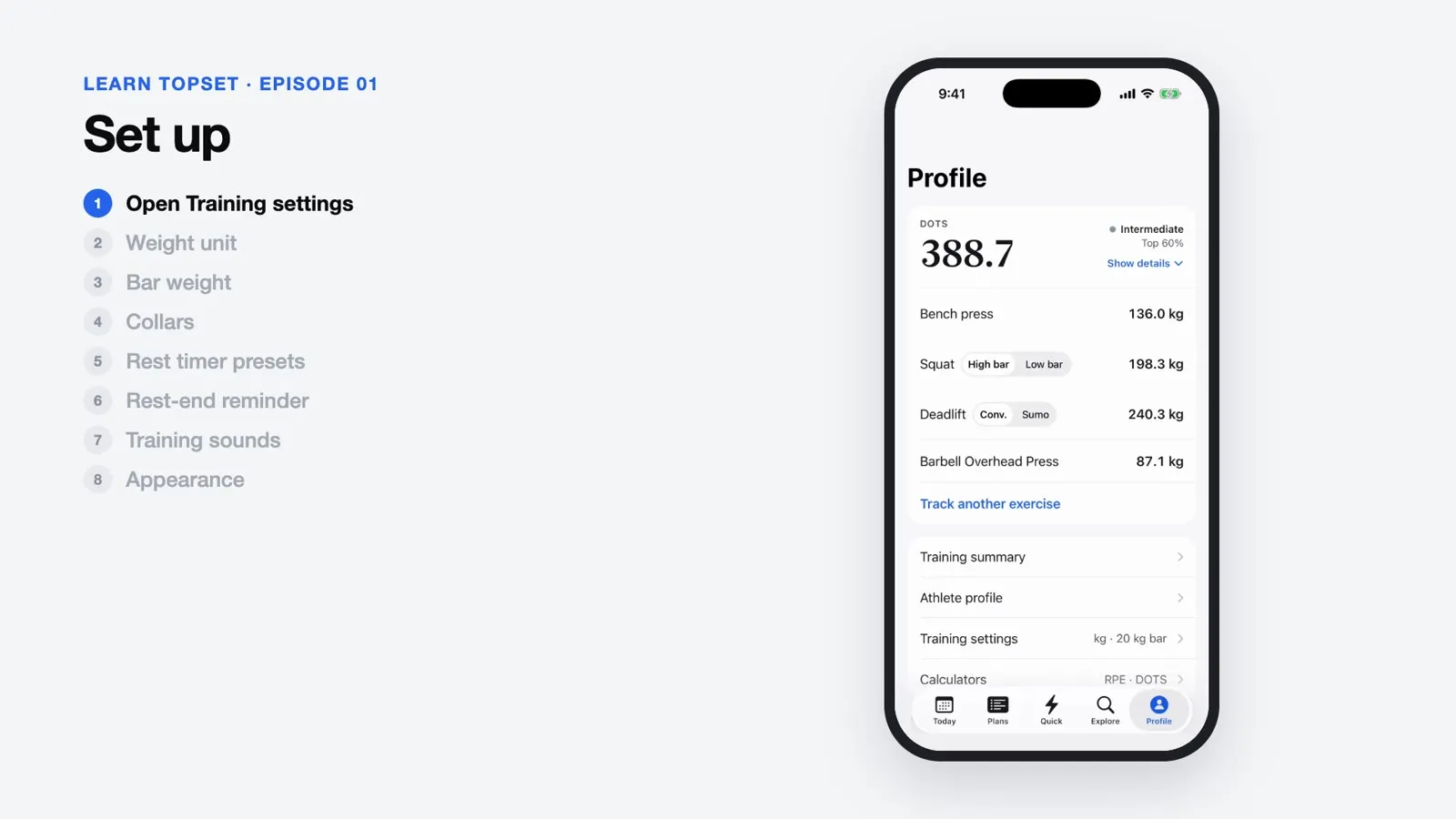
Before your first workout, go to Profile and set the units and equipment to match your gym.

  • kg or lbSwitch between kg and lb any time. Plates, history and the calculators convert automatically.
  • Bar weight and collarsChoose a 20 kg or 15 kg bar. Turn on “Use collars” and the plate diagram adds a 2.5 kg collar on each side.
  • Rest timer presetsSet three rest times, 15 seconds per tap, and pick one from the rest menu during a workout.
  • Reminder and soundsTurn the rest-end reminder and training sounds on or off separately. Sounds respect Silent Mode and won’t interrupt your music.
  • AppearanceSystem, Light or Dark.
Episode 02

Find a program

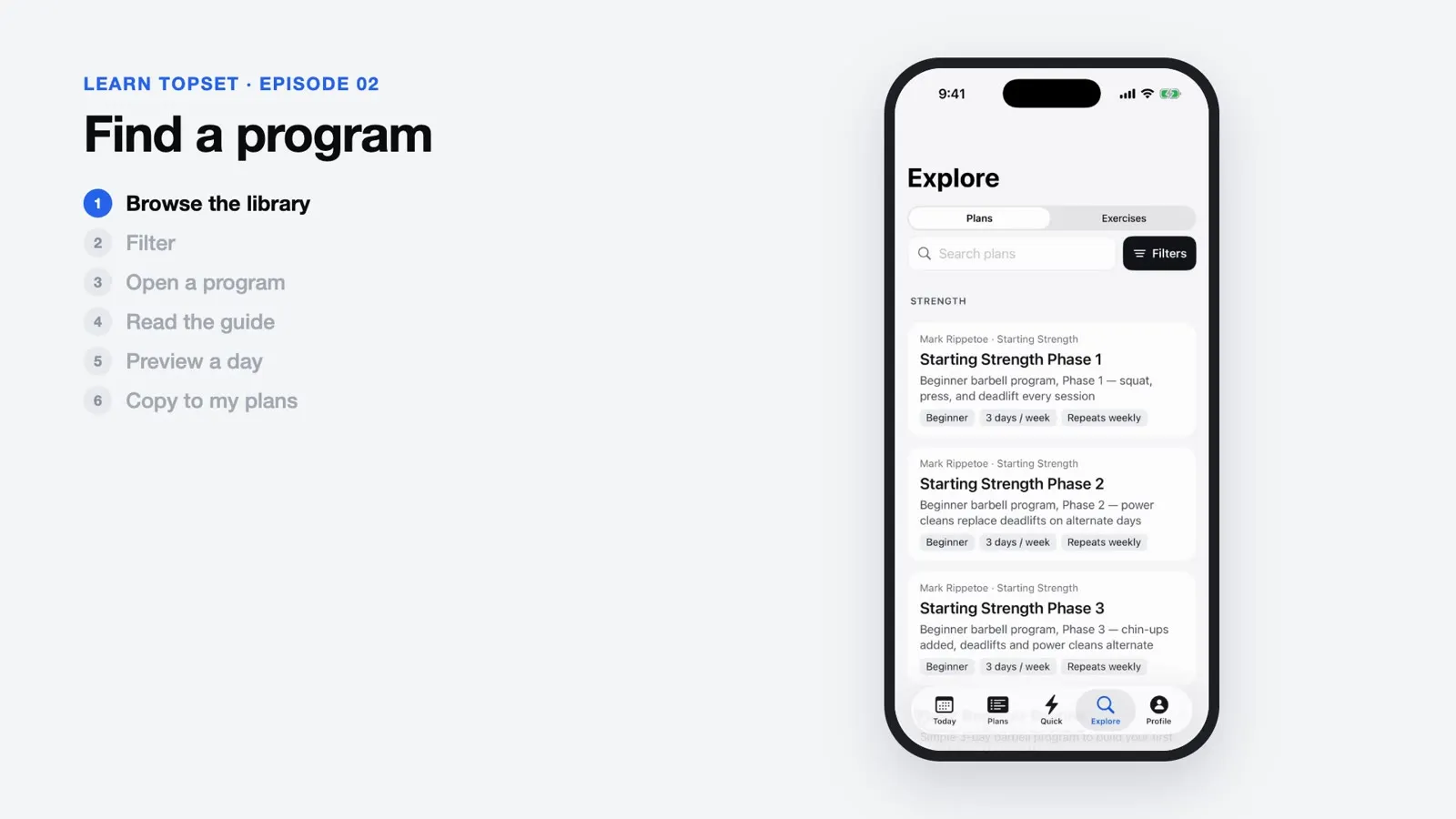
Browse 100+ proven programs. Narrow them down, then preview every training day before you start.

  • 100+ proven programsIncludes the 5/3/1, GZCL, Sheiko, Candito and SBS families, with program content and exercise names in English.
  • FiltersFilter by goal, level, days per week and program length, or search by program name, author or system.
  • Read the guideA program’s guide covers its origin and philosophy, who it’s for, and its pros and cons.
  • Preview every training dayTap any day in a program to see every exercise and its sets, such as “5 × 5 · 75% TM”.
Episode 03

Start a plan

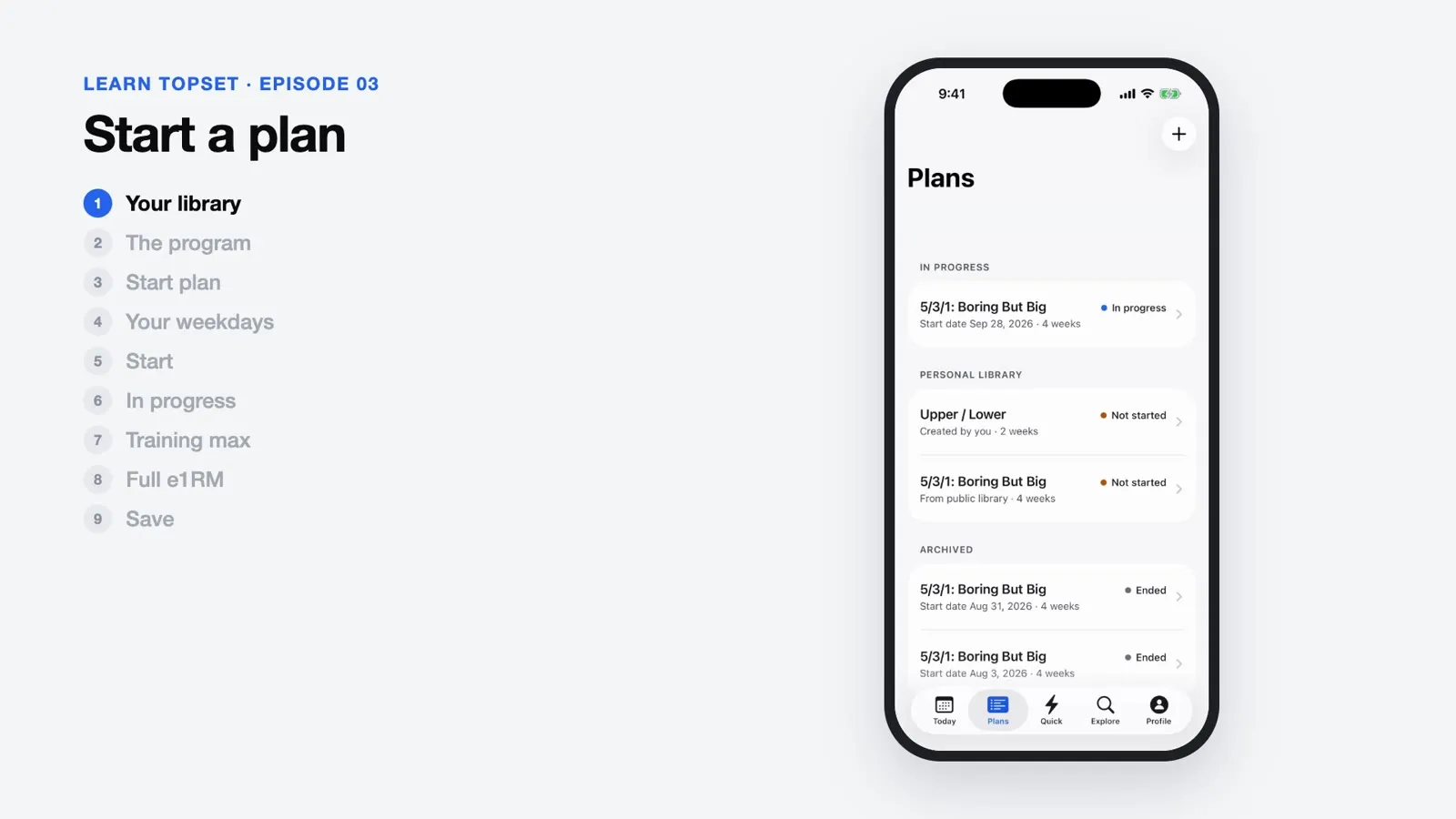
Copy the program you picked, enter your training maxes and you’re ready to train.

  • Copy to my plansTap “Copy to my plans” on a program page to save your own copy to the Plans tab, where you can change anything.
  • Start planTap “Start plan”, then choose a start date and which weekday each training day falls on.
  • Training max per planEach plan keeps its own training max (TM), separate from your e1RM, and uses it for every %TM set.
  • Weeks and progressThe plan page shows how many days you’ve trained and which days are done in each week.
Episode 04

Log your sets

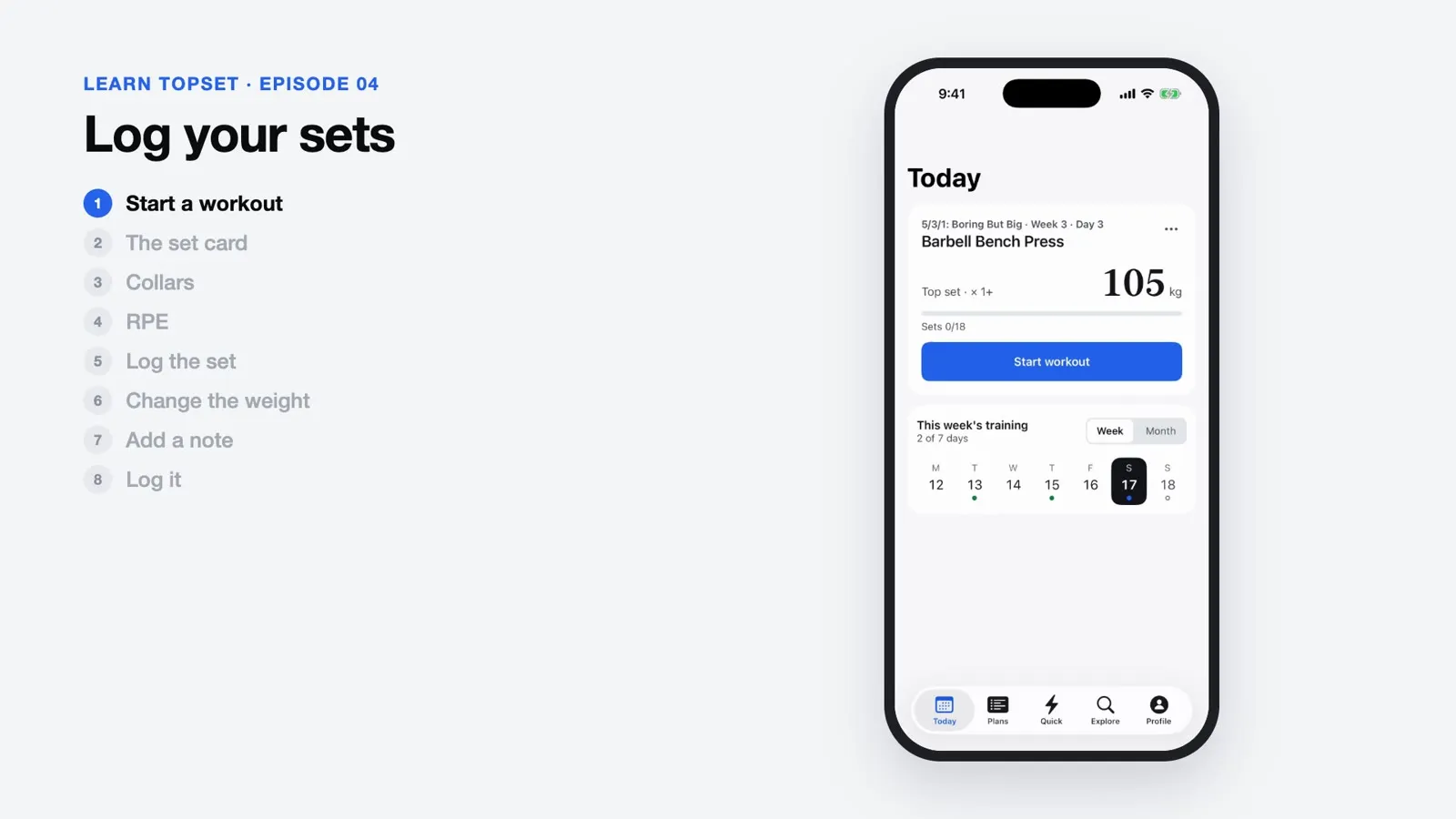
Each set gets its own card with the target weight and reps pre-filled. Tap Log to record it and the rest timer starts. The next set waits until you’re ready.

  • One set, one cardChange weight and reps right on the card, pick RPE on a horizontal wheel or leave it blank, and add a note to any set.
  • Percentages calculated for youPercentage targets turn into weights, rounded to 2.5 kg (or 5 lb), right on the card.
  • Target RPETarget RPE and tempo show under the target weight.
  • Live plate breakdownThe card shows the plates per side, following your bar weight and collar settings.
  • RPE calculator on the cardTap RPE calculator at the bottom of the card to convert between weight and e1RM mid-workout.
  • Exercise historyThe clock button opens the exercise’s history, with past weights, reps and notes, so you can choose today’s weight.
  • SkipNot doing this set? Tap Skip to go to the next one.
Episode 05

Rest timer

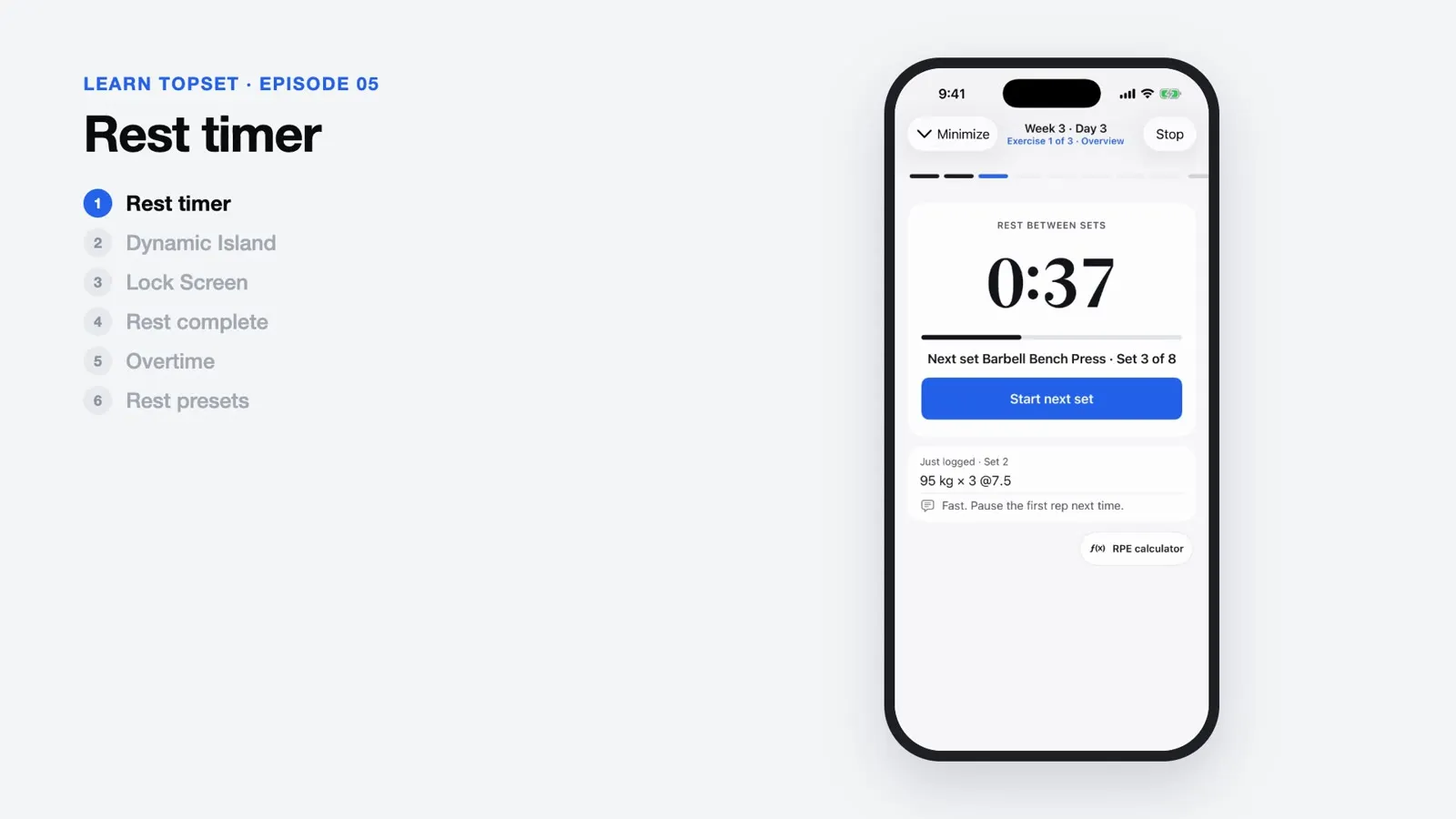
Log a set and the rest timer starts on its own. Switch tabs or lock your phone and you can still see the countdown.

  • Live countdown and alertsThe timer starts after each set and shows live on the Lock Screen and Dynamic Island. In overtime it turns red and keeps counting. When your iPhone is locked, the rest-end alert goes to your paired Apple Watch.
  • Rest time for each setEvery set has its own rest time. Change it on the card or pick one of three presets.
  • Workout dockLeave the workout for another tab and it docks above the tab bar with the exercise and set; during rest it shows the countdown and next set. Tap to go back.
Episode 06

AMRAP and the overview

Change the plan as you go: add a set, swap an exercise, or go back and fix a set.

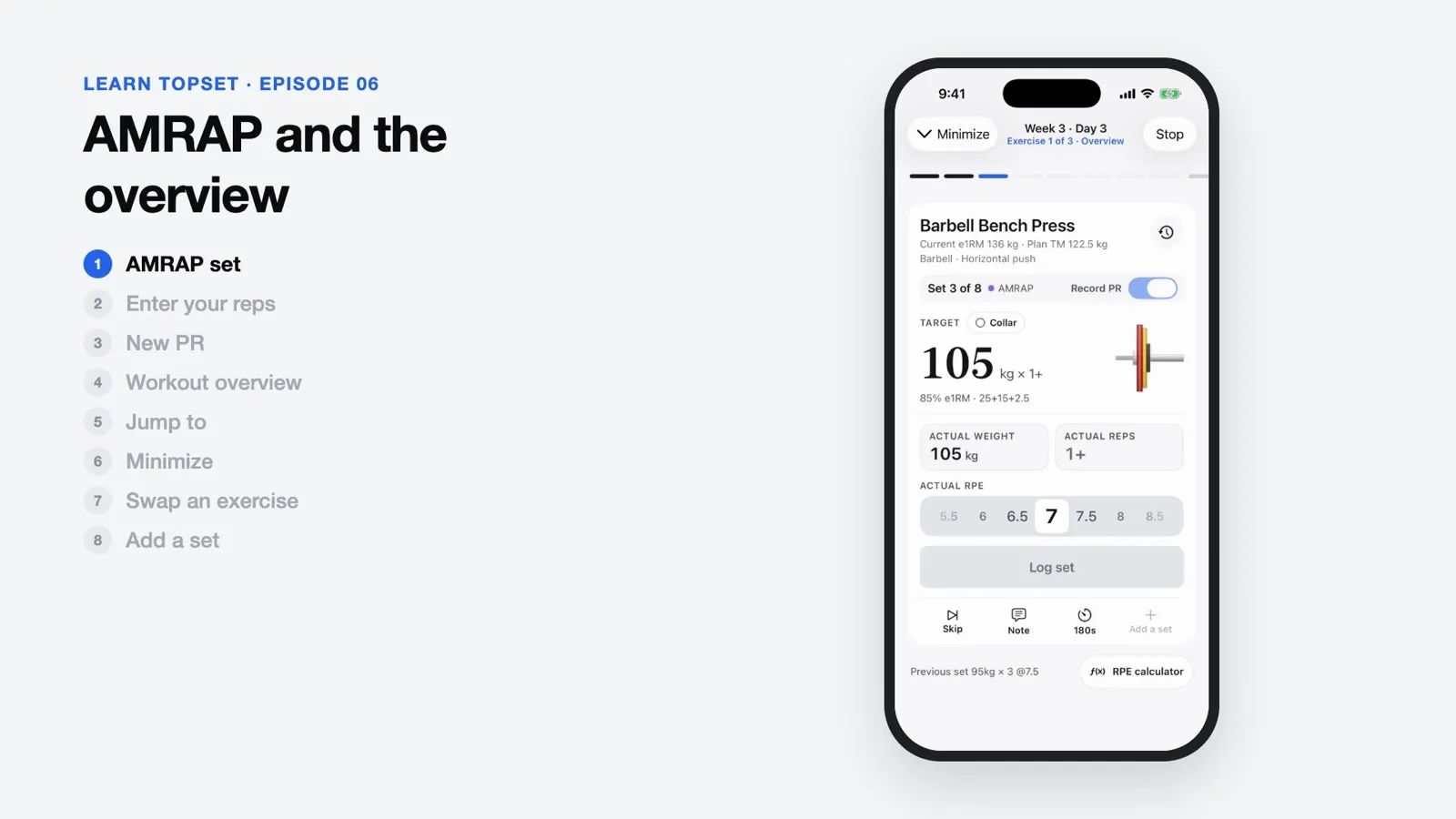
  • Record PRFinishing a set with Record PR on updates your e1RM. Turn it on in the plan ahead of time, or on the card mid-workout.
  • Automatic PR detectionWhen a Record PR set beats your best e1RM for that lift, TopSet flags the PR right away.
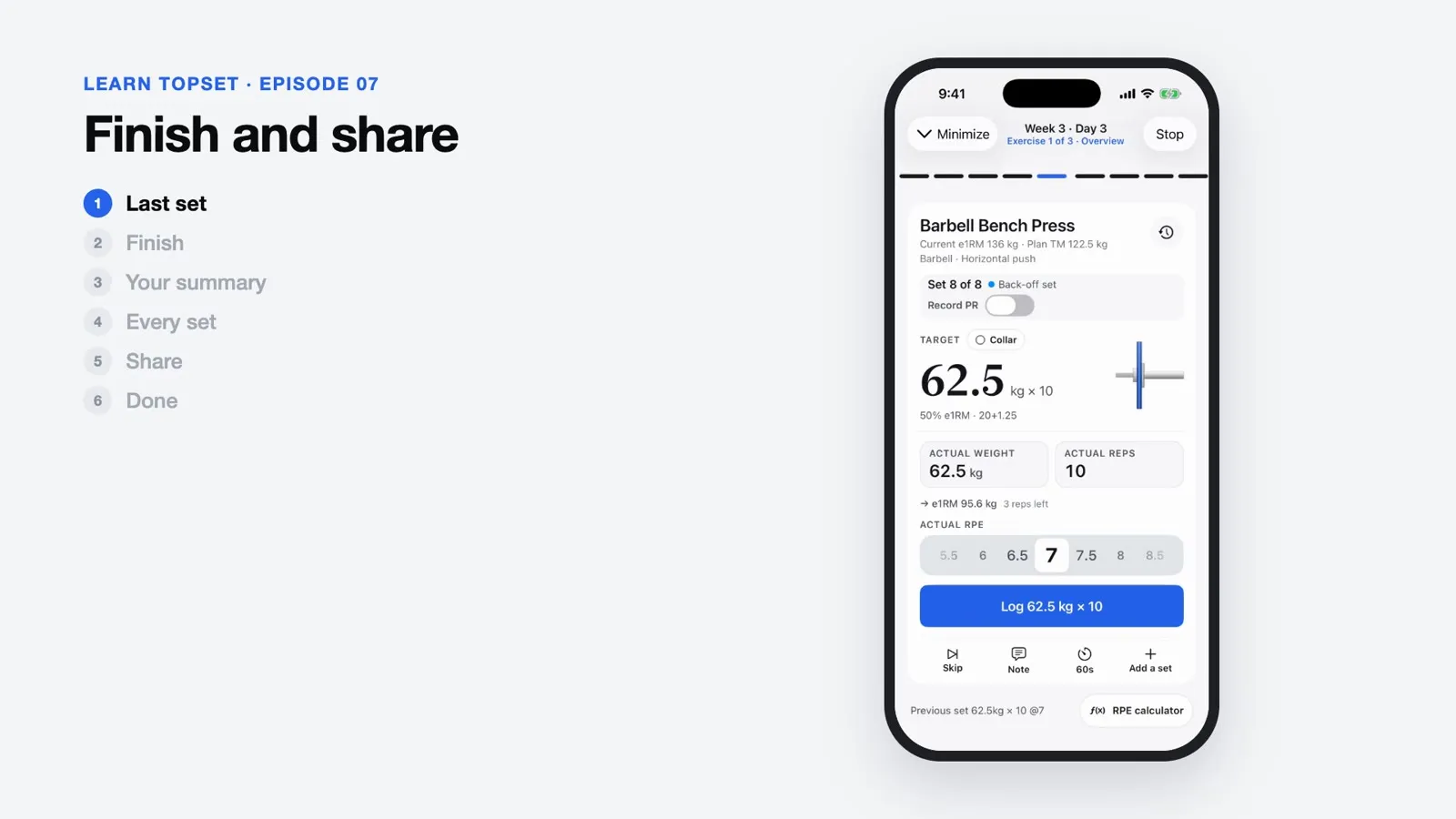
  • Back-off sets calculated for youA back-off set’s weight comes from what you actually lifted on the working set before it.
  • Workout overviewOpen Workout overview to edit any set you’ve done, or jump ahead to a later one.
  • Swap and add a setSwap the exercise from the card. “Add a set” logs this set, then adds one more with the same target.
Episode 07

Finish and share

Log your last set and the session’s summary appears.

  • Workout summarySee duration, sets, total volume and any PRs as soon as you finish, with every set listed below.
  • Share cardShare the summary as a card.
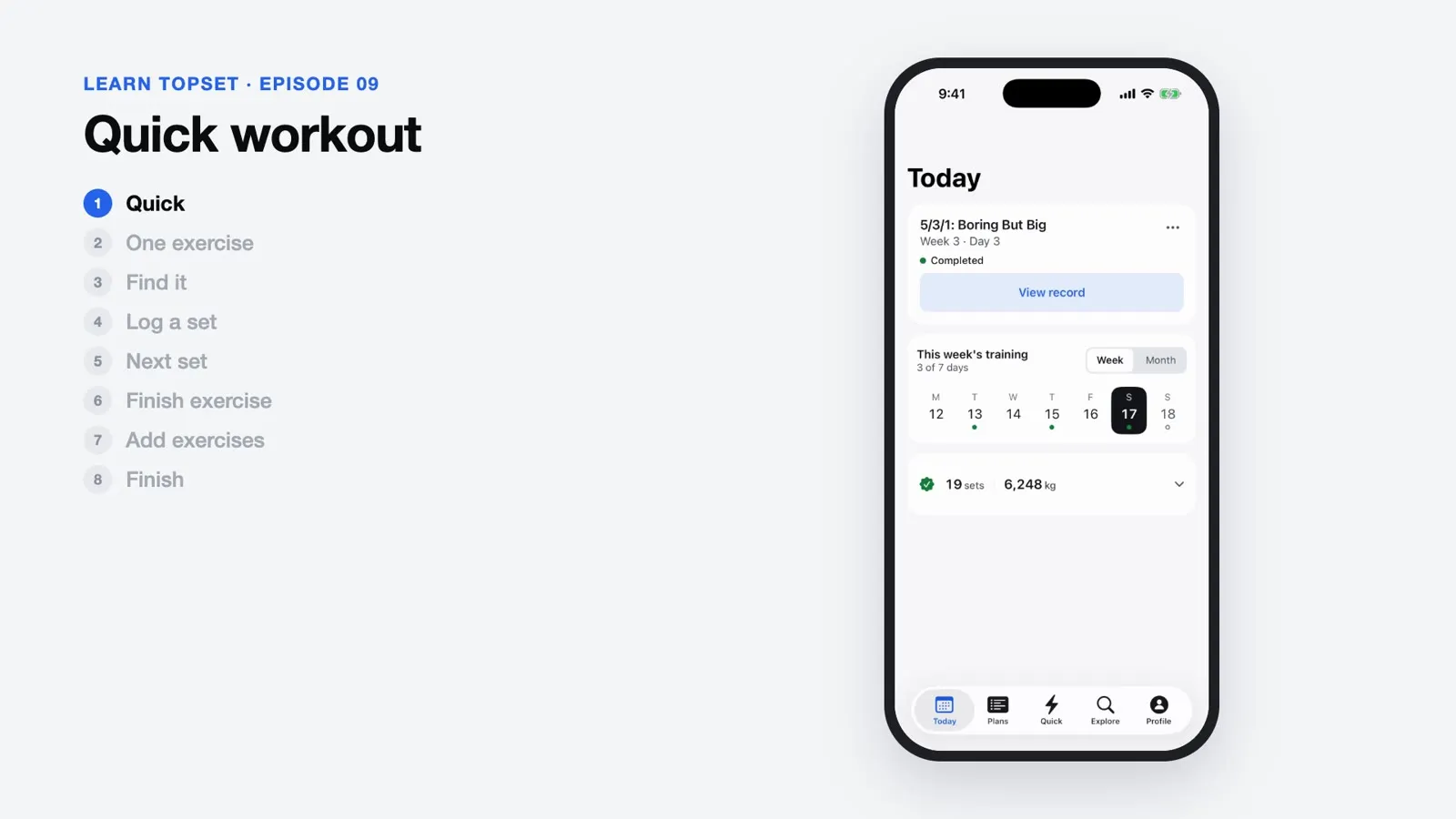
  • Day totals on TodayThe Today tab totals the day’s sets and volume. Tap to see every set.
Episode 08

Build your own plan

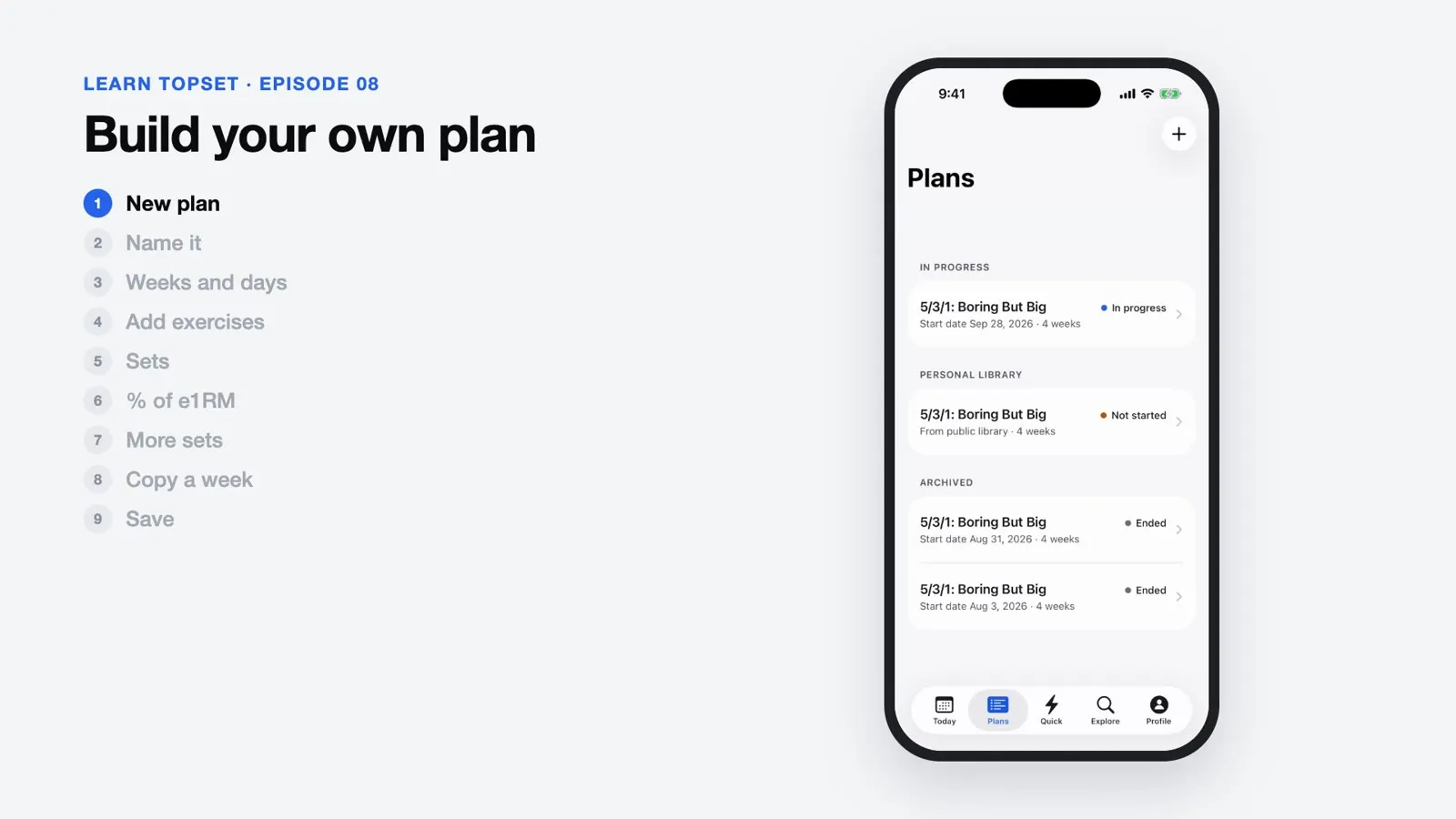
Prefer to write your own? Lay it out by week, day and set, and base each weight on a percentage or an RPE.

  • Plan editorAdd weeks, days and exercises, and give every set a target by %TM, %e1RM or RPE.
  • Five set typesWarm-up, working, AMRAP, drop and back-off sets, each with its own label on the card.
  • Supersets and per-set settingsGroup exercises into supersets, and choose the rest time and Record PR for each set.
  • Start from a programPrograms you copy open in the same editor, so you can swap exercises, change the number of sets or adjust percentages.
Episode 09

Quick workout

Training off-plan? Tap Quick in the middle of the tab bar and start logging.

  • One exercisePick one and log sets.
  • ComboSeveral exercises, in order.
  • Same logging flowYou still get one card per set, the automatic rest timer, and a summary when you finish.
Episode 10

Track your progress

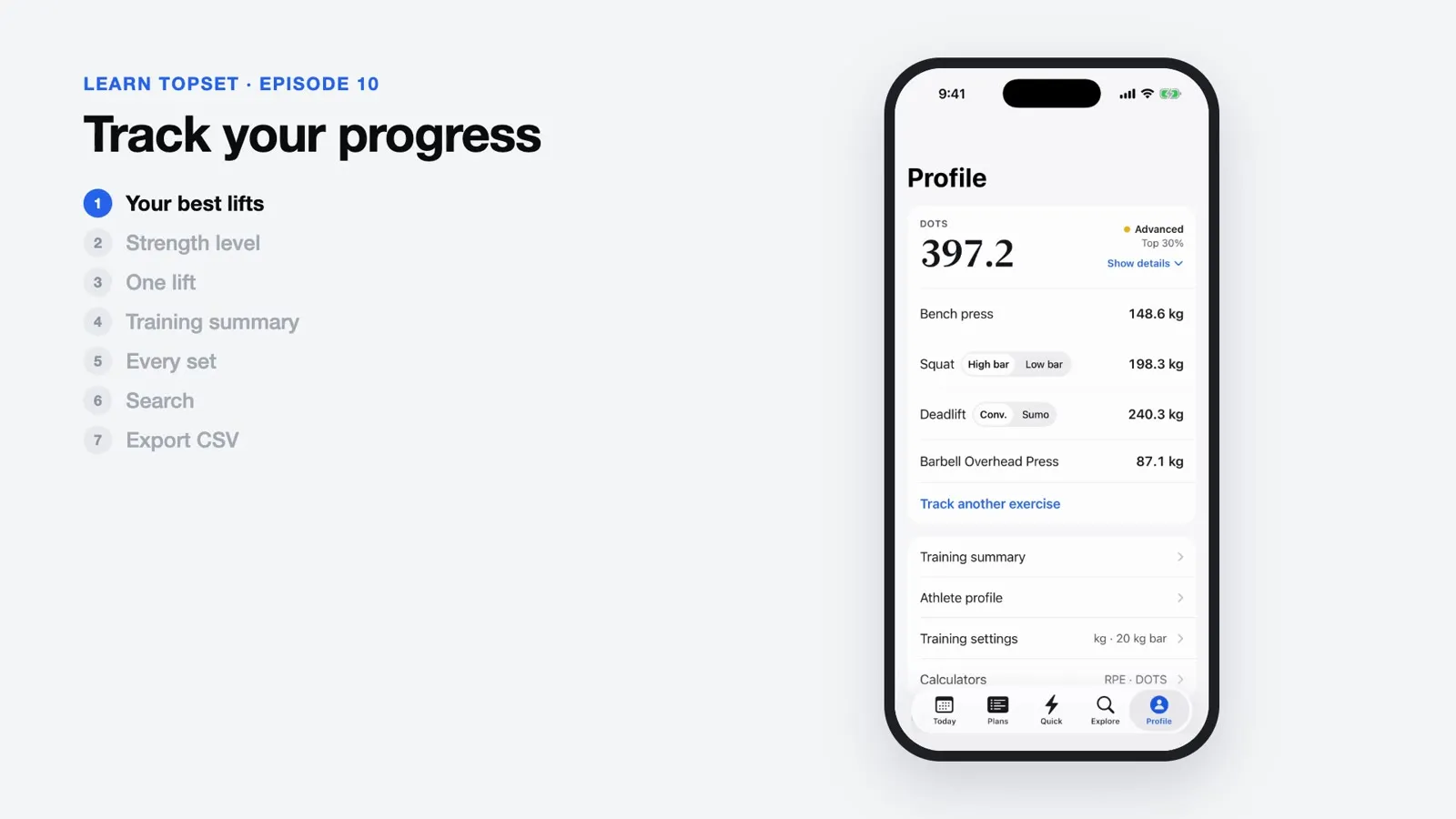
TopSet measures strength by e1RM. You also get a training calendar, Training summary and a body weight log.

  • How e1RM is estimatedTopSet uses RPE multipliers, the same approach OpenPowerlifting uses. Leave RPE blank and it assumes RPE 10.
  • e1RM trendsEach lift gets its own e1RM trend chart, built from Record PR sets, weekly check-ins and values you enter.
  • Weekly check-inAt the end of each week, confirm or update each lift’s e1RM, and next week’s percentage-based weights adjust to match.
  • Training calendarPick any day on the training calendar to see what you did that day.
  • Training summary and CSVTraining summary totals any date range and exports to CSV, with date, exercise, set type, weight, reps, RPE and notes.
  • Body weightLog your body weight to keep your DOTS score current.
Episode 11

Calculators

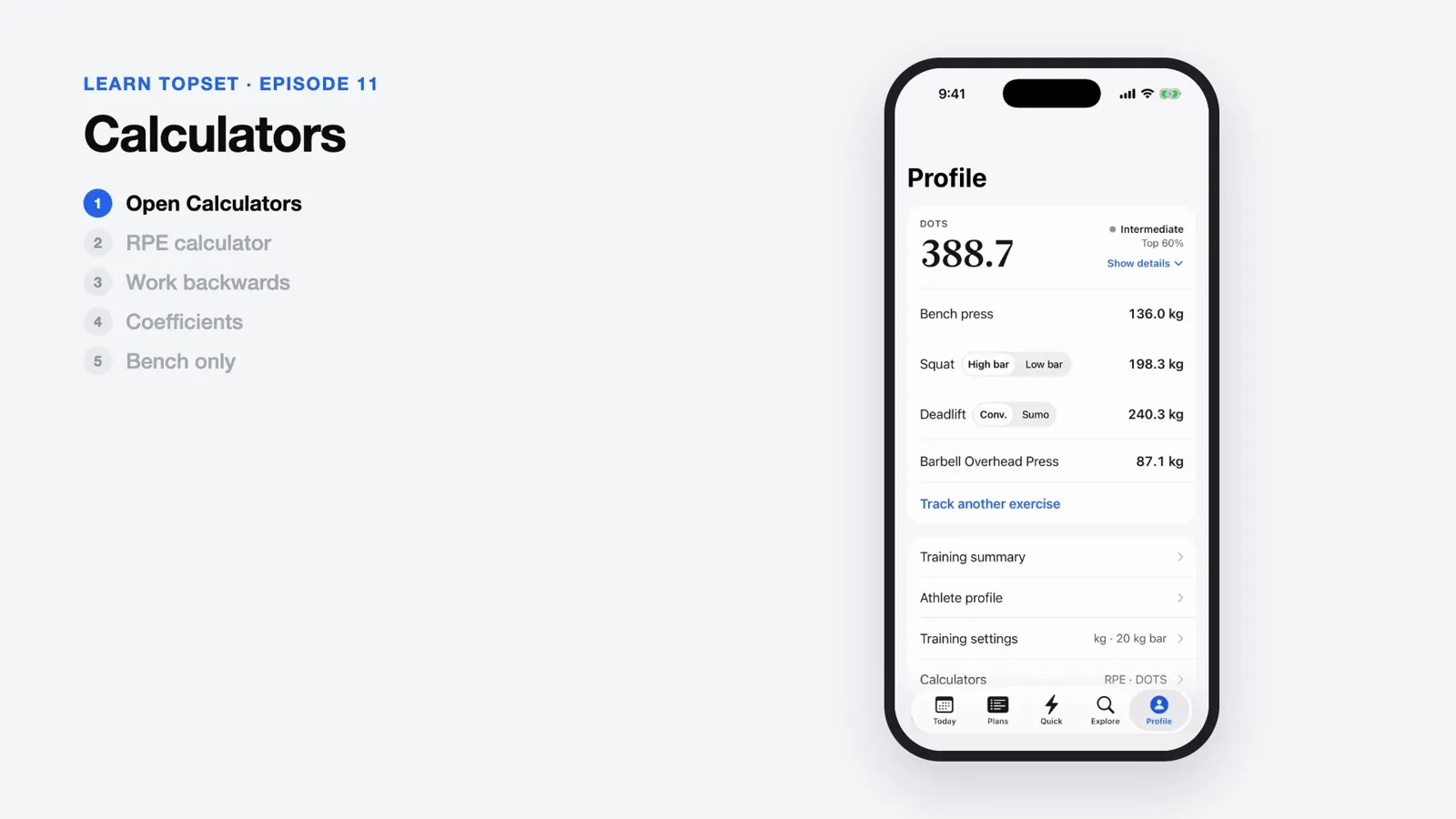
Both calculators live in Profile and work without an account. Every formula cites its source.

  • RPE calculatorEstimate e1RM from weight, reps and RPE, or work back from an e1RM to a target weight.
  • Coefficient calculatorEnter your sex, body weight and three lifts to get DOTS, Wilks, IPF GL and more. The one on our home page also shows your DOTS tier.

Make every set count.

Download on the App StoreiOS 18.0 or later · All features free for now · Android coming soon